Python for Humans · Draft v0.1 · Oct 29, 2026 · Draft position: chapter 19 · First short project draft.
Dodge the Blocks
- You should already know
- Loops, functions, dictionaries and the local package workflow.
- You'll build
- A game window: move left and right, dodge falling blocks and restart after a collision.
- You'll be able to
- Handle events, update positions over time, draw a frame and detect collisions.
- You need
- Your local setup, any plain-text editor, uv and internet access for installing packages. Python 3.14 is selected for these examples.
Your card game waits for a command before anything changes. A graphical game keeps moving while you decide what to do.
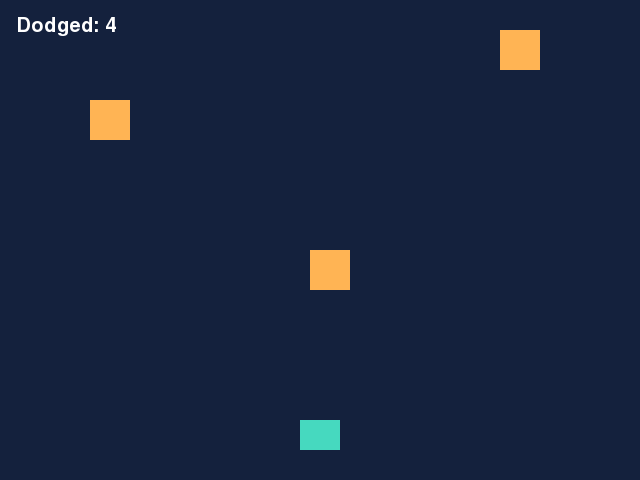
We'll draw a player and falling blocks using pygame-ce, a community edition of Pygame. No artwork or sound files are needed. Your score increases for every block that passes you. A collision ends the round.
Open a Window
From your course folder, make a separate project:
mkdir dodge-game
cd dodge-game
uv init --bare --vcs none --no-workspace --python 3.14
uv python pin 3.14
uv add pygame-ce
The package is called pygame-ce; its import is pygame. Save this first experiment as dodge.py:
import pygame

pygame.init()
screen = pygame.display.set_mode((640, 480))
clock = pygame.time.Clock()
running = True
while running:
    for event in pygame.event.get():
        if event.type == pygame.QUIT:
            running = False
    screen.fill('navy')
    pygame.display.flip()
    clock.tick(60)
pygame.quit()
Run uv run dodge.py. A navy window should open. Close it with its close button and confirm that the terminal prompt returns.
The loop handles queued events, paints a frame and displays it. clock.tick(60) limits how often it repeats. Without checking events, the window couldn't respond properly to a close request.
Add Movement and Obstacles
The complete game below separates three jobs: new_game() creates state, update() changes it, and draw() displays it. Read those functions before running the file. Predict which values a restart must reset.
Compare the complete dodge.py
import random
import pygame

WIDTH = 640
HEIGHT = 480


def new_game():
    return {
        'player': pygame.FRect(300, 420, 40, 30),
        'blocks': [],
        'spawn': 0.0,
        'score': 0,
        'over': False,
    }


def update(game, direction, dt):
    if game['over']:
        return
    player = game['player']
    player.x = max(0, min(WIDTH - player.width, player.x + direction * 360 * dt))
    game['spawn'] += dt
    if game['spawn'] >= 0.55:
        game['spawn'] = 0.0
        game['blocks'].append(pygame.FRect(random.randint(0, WIDTH - 40), -40, 40, 40))

    remaining = []
    for block in game['blocks']:
        block.y += 220 * dt
        if block.top >= HEIGHT:
            game['score'] += 1
        else:
            remaining.append(block)
    game['blocks'] = remaining
    for block in game['blocks']:
        if player.colliderect(block):
            game['over'] = True


def draw(screen, font, game):
    screen.fill('#14213d')
    pygame.draw.rect(screen, '#46d9bf', game['player'])
    for block in game['blocks']:
        pygame.draw.rect(screen, '#ffb454', block)
    label = font.render(f"Dodged: {game['score']}", True, 'white')
    screen.blit(label, (16, 16))
    if game['over']:
        message = font.render('Game over! R to restart; Esc to quit.', True, 'white')
        screen.blit(message, (50, 220))


def main():
    pygame.init()
    try:
        screen = pygame.display.set_mode((WIDTH, HEIGHT))
        pygame.display.set_caption('Dodge the Blocks')
        font = pygame.font.Font(None, 30)
        clock = pygame.time.Clock()
        game = new_game()
        running = True
        while running:
            dt = min(clock.tick(60) / 1000, 0.05)
            for event in pygame.event.get():
                if event.type == pygame.QUIT:
                    running = False
                elif event.type == pygame.KEYDOWN:
                    if event.key == pygame.K_ESCAPE:
                        running = False
                    elif event.key == pygame.K_r:
                        game = new_game()
            keys = pygame.key.get_pressed()
            direction = int(keys[pygame.K_RIGHT]) - int(keys[pygame.K_LEFT])
            update(game, direction, dt)
            draw(screen, font, game)
            pygame.display.flip()
    finally:
        pygame.quit()


if __name__ == '__main__':
    main()
You can also download dodge.py. Save the complete version in your project and run it. Use the left/right arrow keys, R to restart and Esc to quit. Click the game window if it isn't receiving keyboard input.
Follow One Frame
pygame.FRect holds a rectangle with floating-point coordinates. Its x, y, width and height describe a position and size. colliderect() asks whether two rectangles overlap. We use rectangles for both drawing and collision rules.
pygame.key.get_pressed() reports keys held down now. Events such as pressing R happen once; held arrow keys move the player across many frames. Converting each Boolean to int gives a direction of -1, 0 or 1.
dt is the elapsed time in seconds, calculated from the clock's millisecond result. Movement is speed multiplied by elapsed time. The small cap avoids a huge jump after a pause; this simple game slows during a long stall rather than trying to catch up instantly.
The player is clamped between the left and right edges. A timer creates blocks above the window. Blocks move downward, and each one that leaves the bottom adds a point. remaining collects the blocks still on screen; we don't remove items from the list we're iterating over.
A collision sets over to True. Later updates return immediately, freezing the round. Drawing still happens so we can show the restart message. R replaces the state dictionary with a fresh round.
Check a Rule Without Playing
Save as check_game.py beside the full game:
import pygame
from dodge import new_game, update

first = new_game()
second = new_game()
first['blocks'].append(first['player'].copy())
update(first, 0, 0)
assert first['over'] is True
assert second['over'] is False
assert second['blocks'] == []

fresh = new_game()
fresh['blocks'].append(pygame.FRect(0, 480, 40, 40))
update(fresh, 0, 0)
assert fresh['score'] == 1
assert fresh['blocks'] == []
print('Game checks passed.')
Run uv run check_game.py. The fixed rectangles make collision and scoring predictable. The main guard lets this check import the game without opening its window.
Make It Yours
Change the fall speed, spawn interval or player width one at a time. Before each change, predict whether it makes survival easier. Then play long enough to compare.
Add a best score that lasts between rounds. Decide which value must live outside the dictionary replaced by new_game(). Saving it between program runs can reuse the file techniques from Part II.
A larger optional extension is a maze: draw a grid, mark walls and find a route. That adds a search algorithm, so write a tiny maze with a known answer before attempting animation.
What I've Learned
Explain why a graphical game needs a loop even when the player isn't typing, and which work belongs in update versus draw.
Continue with the pygame-ce documentation. This first draft uses simple rectangle collisions; it doesn't attempt a physics simulation.